

Exclusive Tech
L5B83G Voice Remote Control for AMZ Fire TV Stick (2nd Gen, 3rd Gen, Lite, 4K, 4K Max), Fire TV Cube, for Smart TVs (3rd Gen)
Choose options
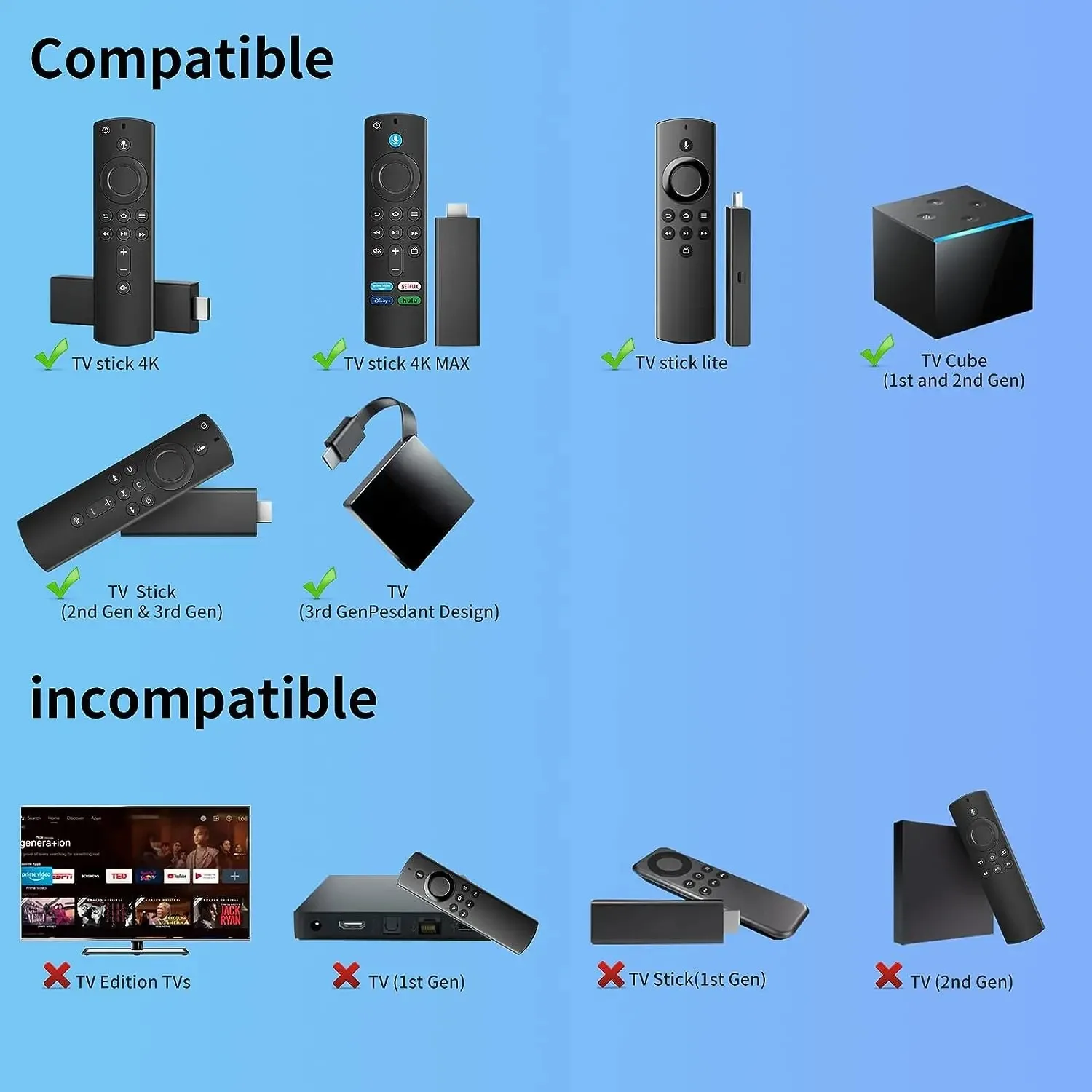
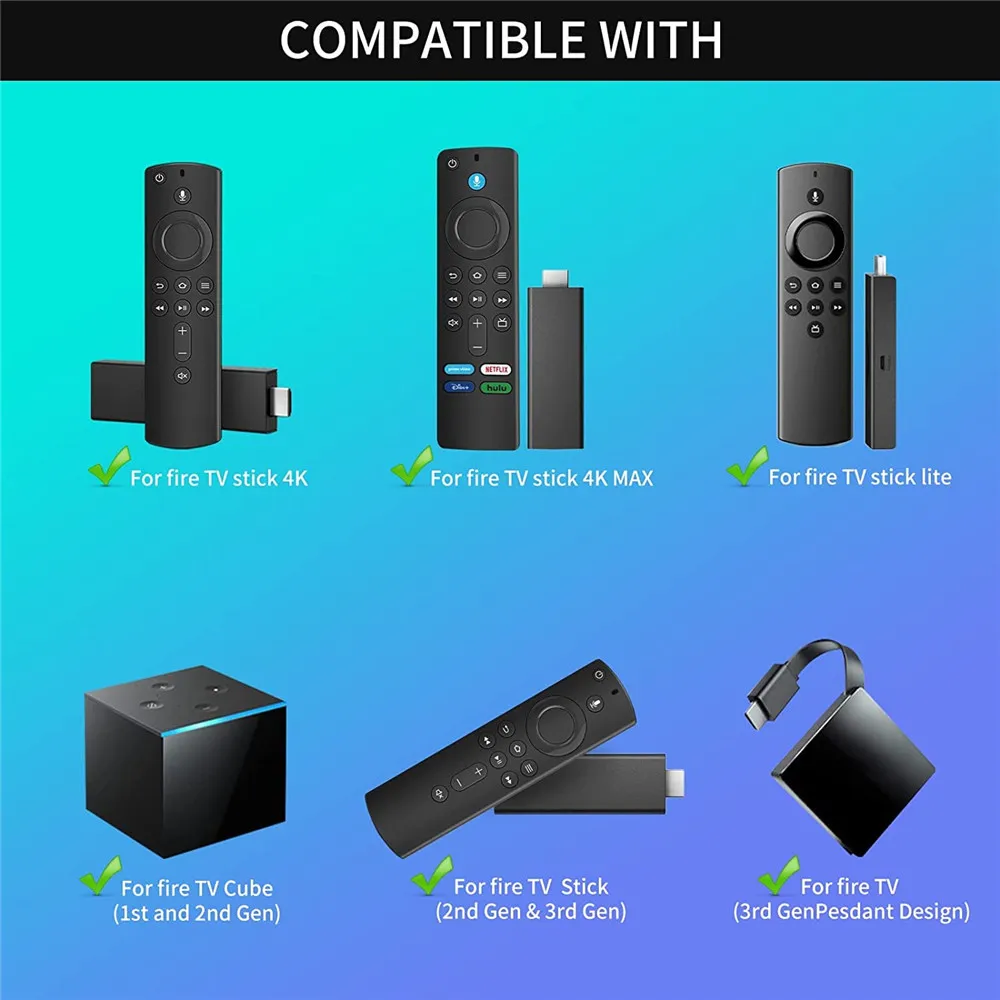
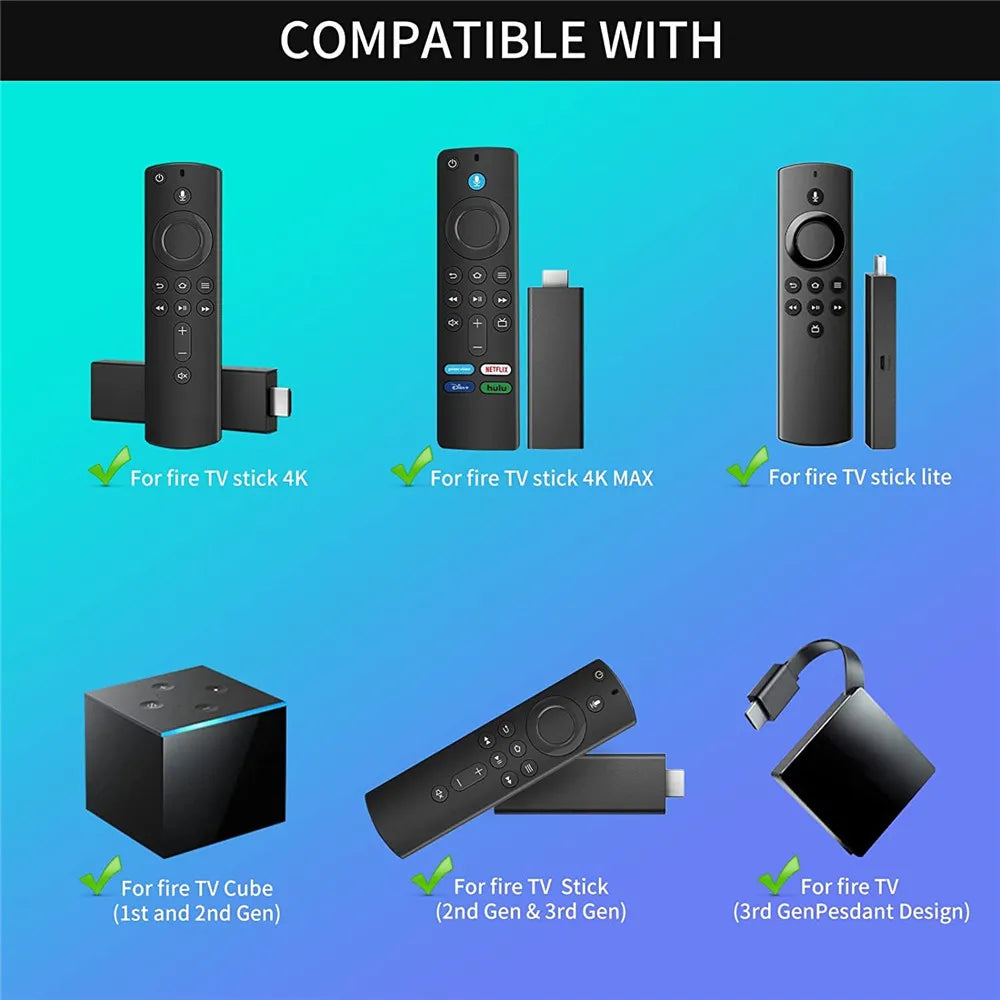
⭐COMPATIBLE WITH: Replacement Voice Remote Control (3rd Gen) Fit for AMZ Fire Smart TVs Stick Lite, Smart TVs Stick (2nd Gen and Later), Smart TVs Stick 4K/4K Max, Smart TVs Cube(1st Generation And Later), Smart TVs (3rd Generation).
⭐NOT COMPATIBLE: Please note, this remote control can not fit for smart TV (1st and 2nd Gen), smart TV stick (1st Gen), or Fire TV edition smart TV. If your product doesn't work, please send your message to us, we must give you the best solution in the end.
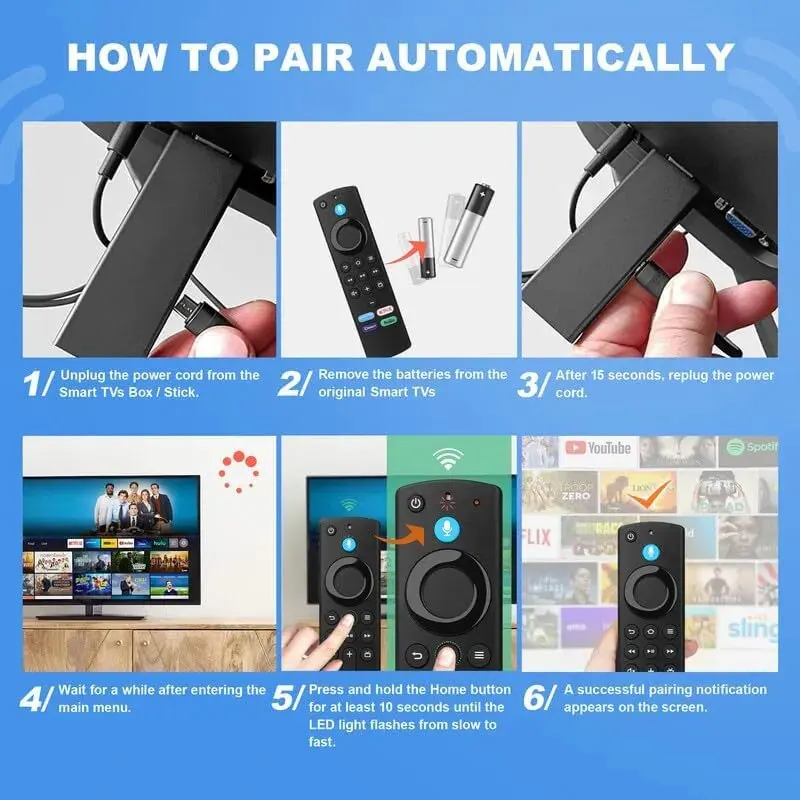
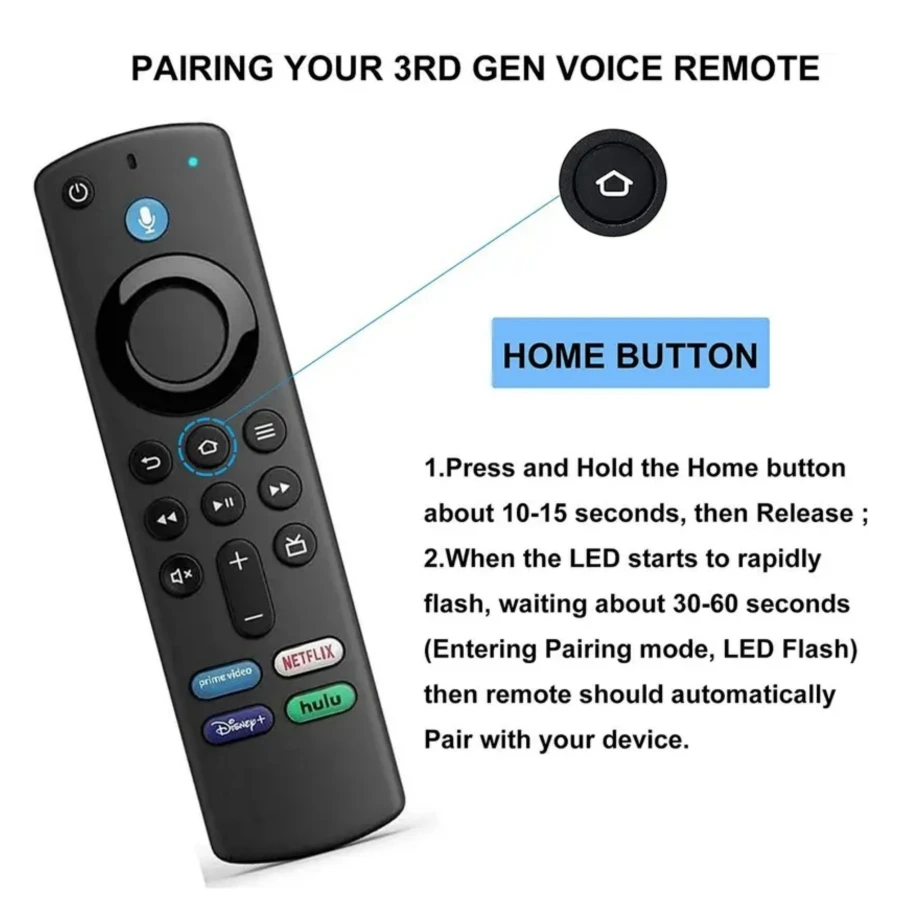
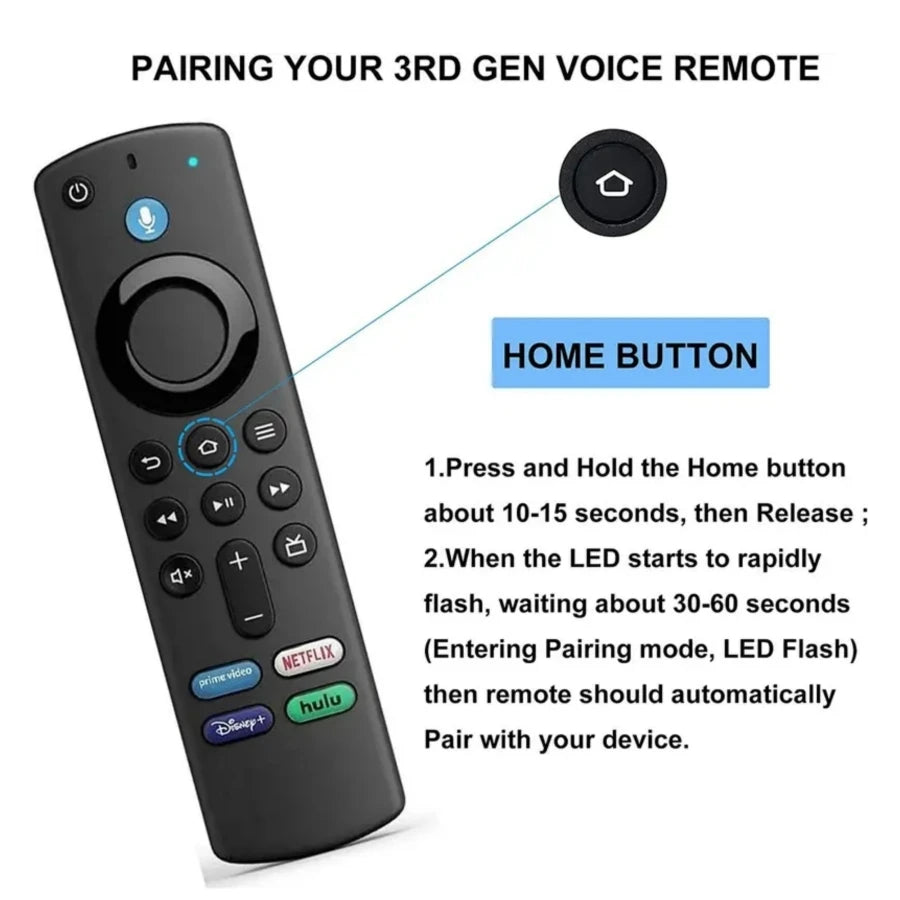
⭐EASY to PAIRING: Pair before use, press the Home button about 10-15 seconds, the indicator LED will slowly flash amber for 10 seconds, waiting about 30-60 seconds (Entering Pairing mode, LED Flash), then remote should automatically Pair with your device. then flash faster when your remote is ready to connect.
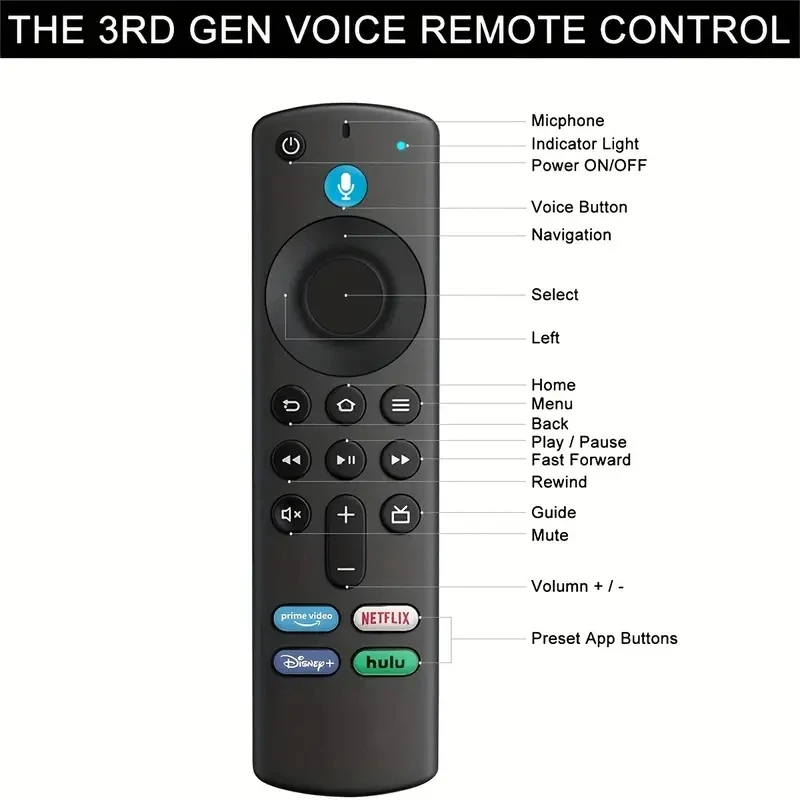
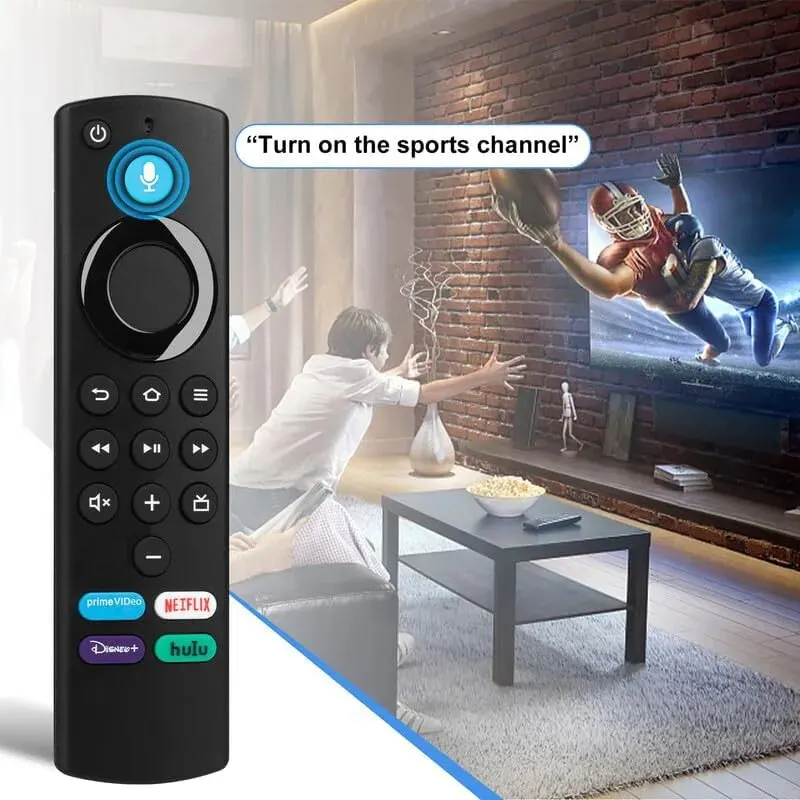
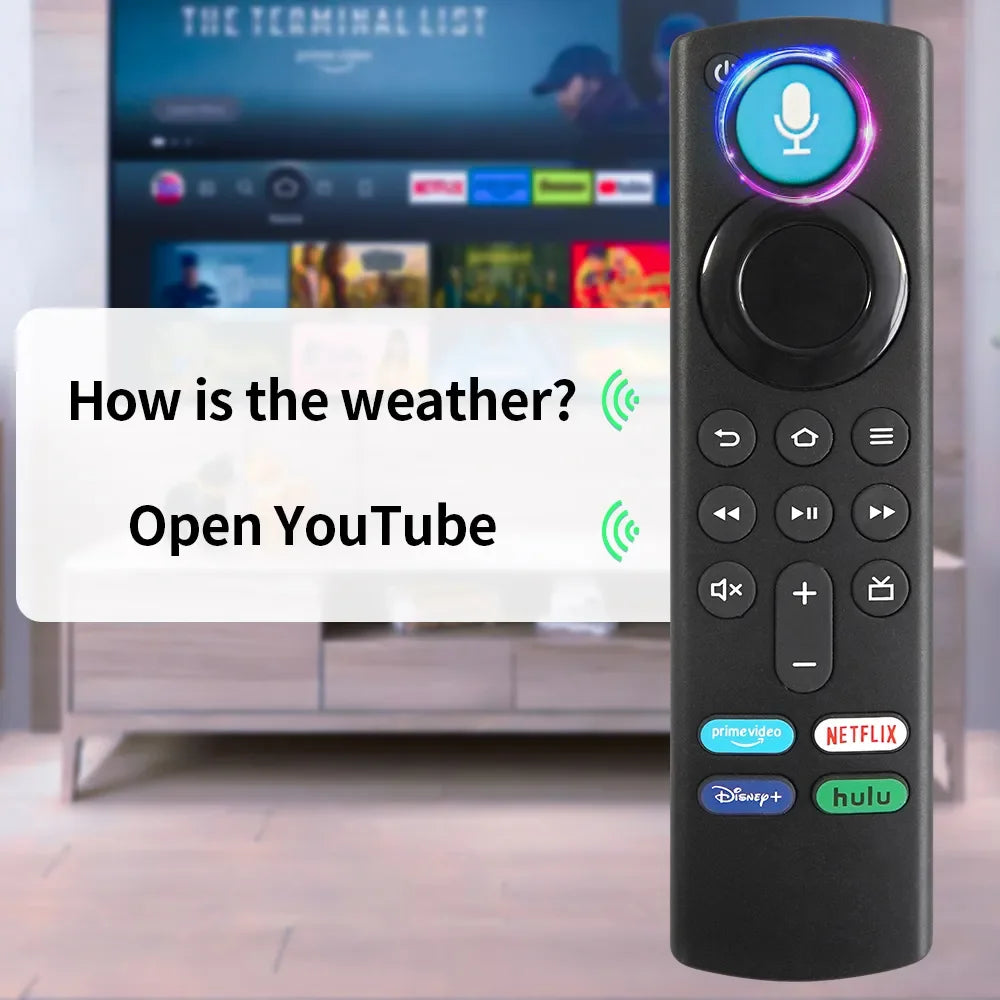
⭐VOICE FUNCTION: This replacement voice remote control adds voice function to find everything you want by voice, you just need to press or voice ask to find start and control content, such as weather forecast, music, movies, etc. ABS material, durable. Note: Please reset the voice remote control when it fails to work.
⭐PACKAGE INCLUDE: 1 x voice remote control, 1 x user manual (Notice: 2 x AAA batteries not include).
⭐NOTE: 1:Make sure your old remote's batteries are removed before pair,if the old remote is still pairing,the new one can not be used, 2:Please confirm your remote whether connected more than 6 limits, 3:You will get 1x Voice Remote (AAA battery not included).
-
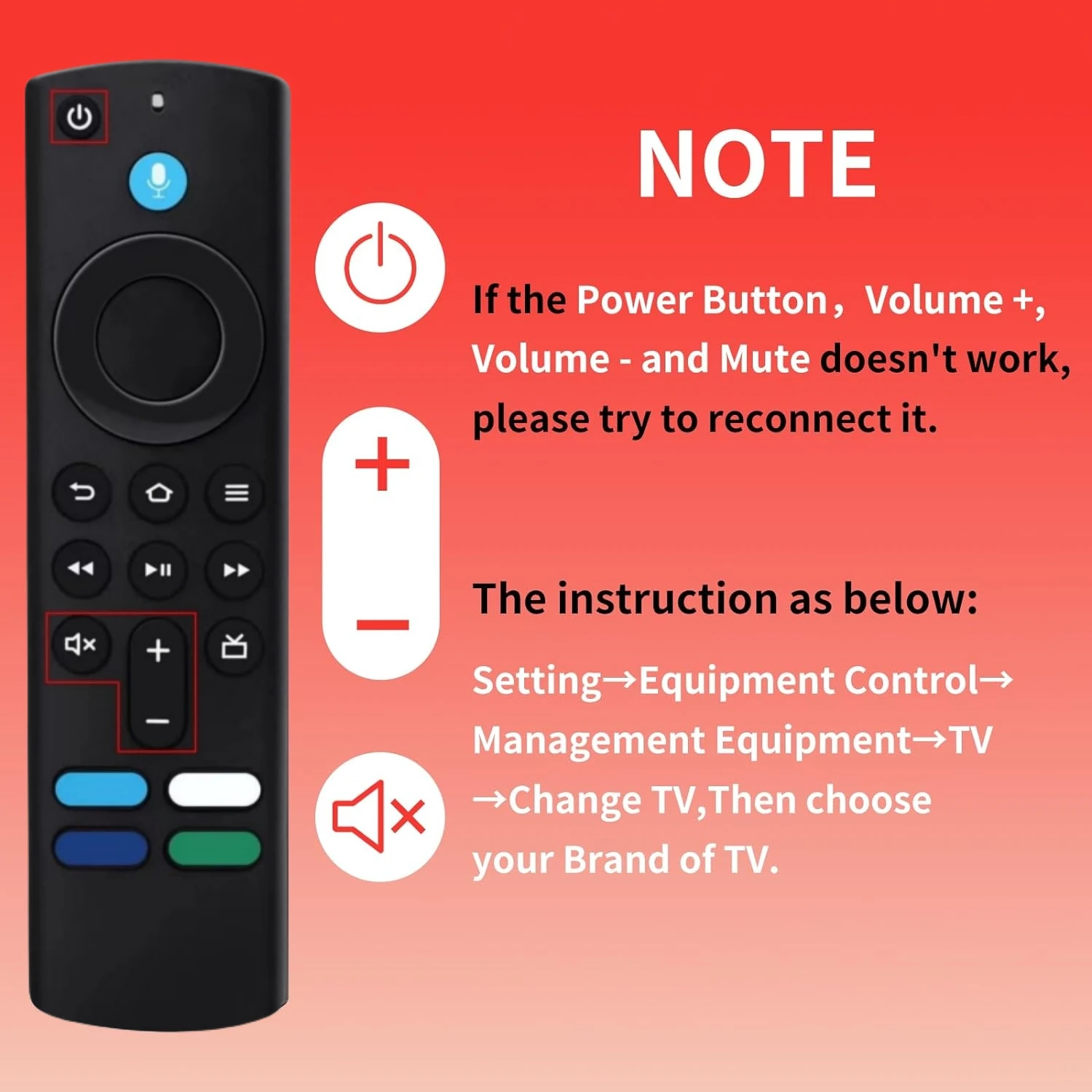
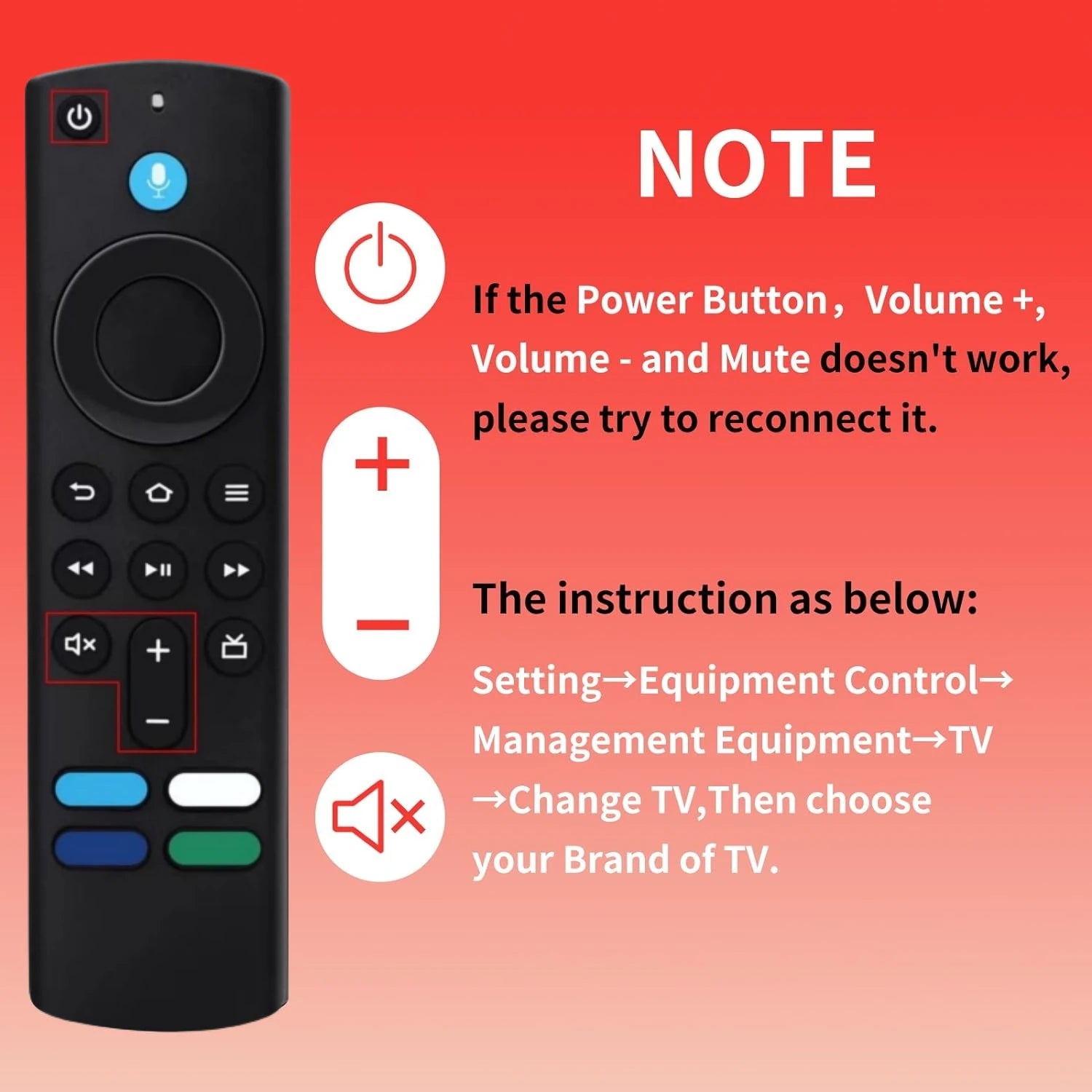
⭐Trouble Shooting:If you're trying to control the TV volume and power, we recommend following the Equipment Control steps after putting fresh batteries in the remote. Also, ensure the device has no pending updates before you try.
1. Go toSettings on your Fire TV device.
2. SelectEquipment Control.
3. SelectManage Equipment.
4. SelectTV.
5. SelectChange TV.
6. SelectChange TVagain to confirm.
7. Wait for your remote to be prepared.
-
8. Select your brand of TV. The most common brands are listed first. Then there will be an all inclusive list of brands in alphabetical order. Should you not see your brand, selectBrand not listedwhich will be at the bottom of the list.
9. Follow the instructions on screen to finish setting up TV control. You may be asked to press the power and/or volume buttons on the Fire TV remote.